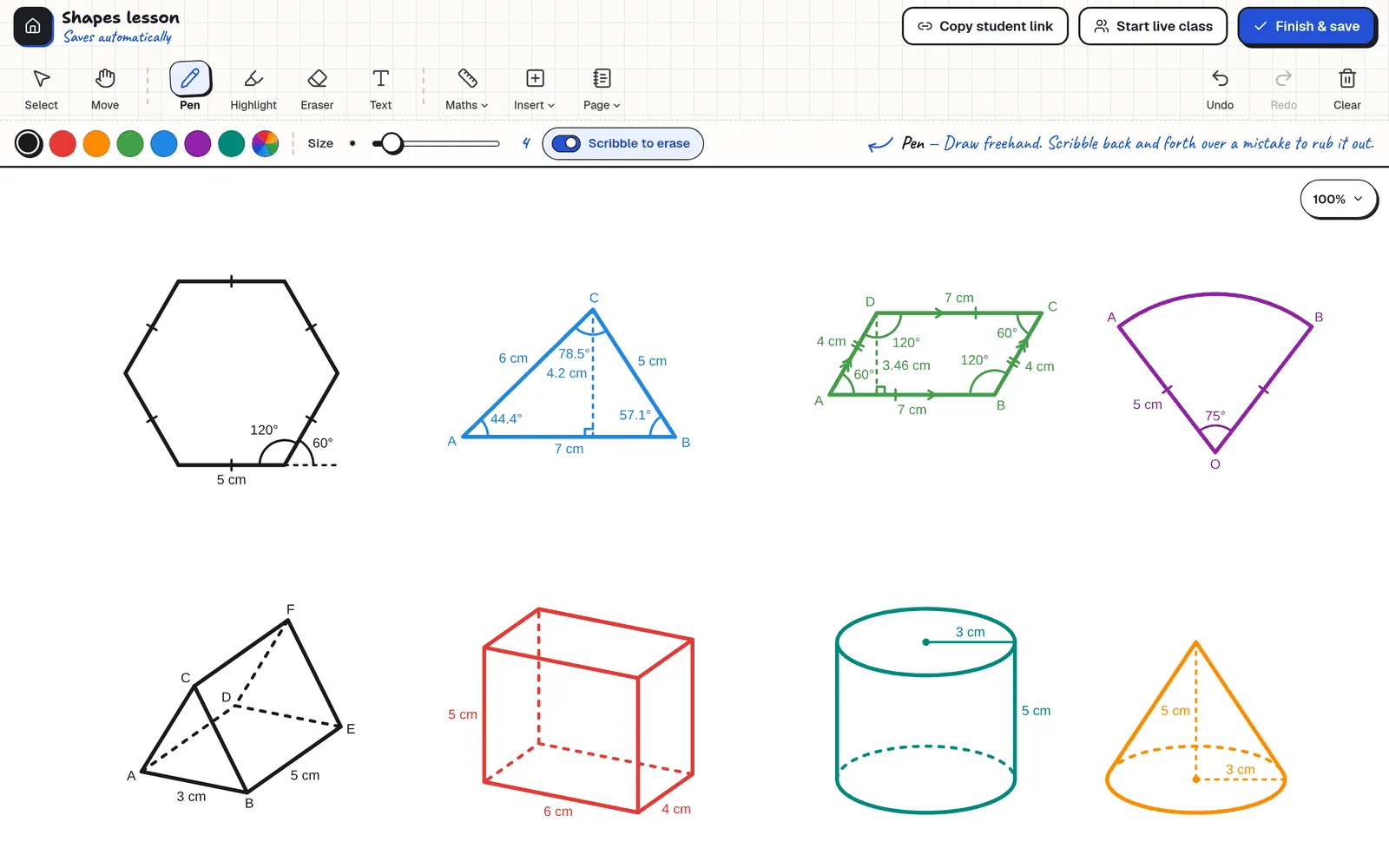
Exact shapes: polygons, triangles, circles and 3D solids
Choose Insert, then Shape. Pick a family, type the numbers you want, and a live preview shows the shape before it goes on the board.
- Polygons from 3 to 20 sides. The number of sides, the interior angle and the exterior angle are linked: change one and the others follow.
- Triangles: equilateral, isosceles, right-angled, or any triangle from three sides, two sides and the angle between them, or two angles and the side between them.
- Quadrilaterals: square, rectangle, parallelogram, rhombus, trapezium (trapezoid) and kite, with the equal-side marks and parallel arrows worked out for you.
- Circles: circle, semicircle, sector, segment, arc and ellipse.
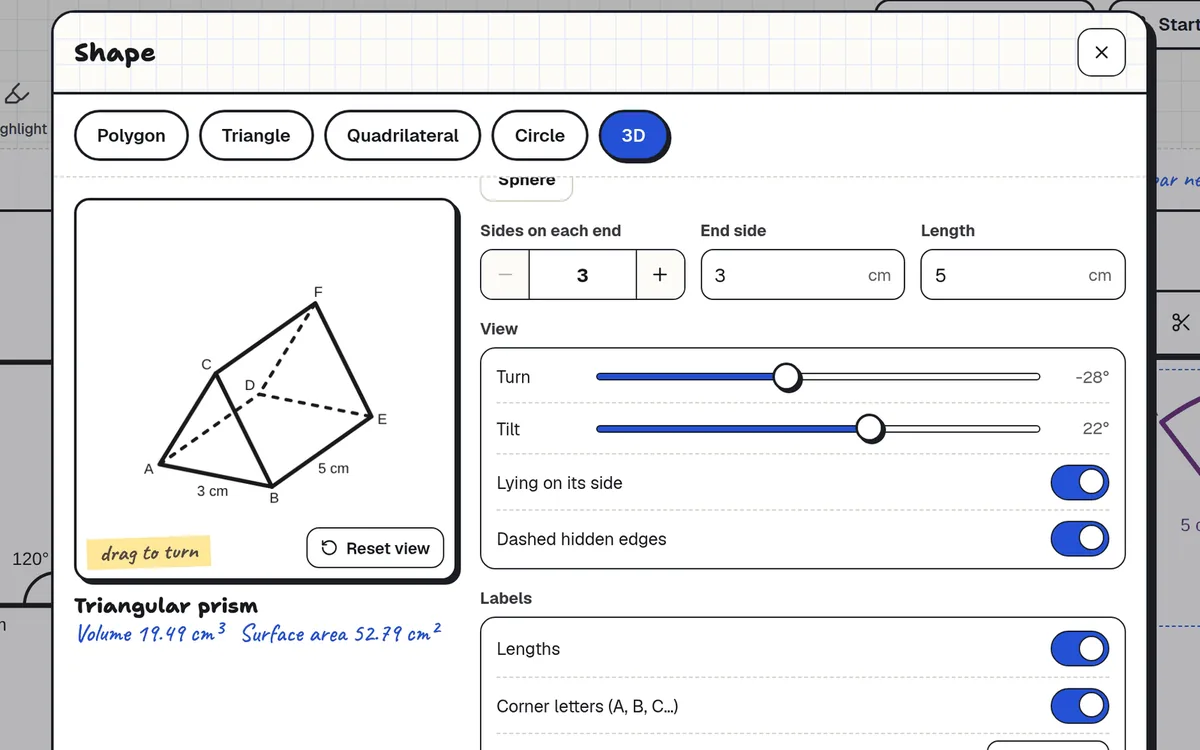
- 3D solids: cube, cuboid, prism, pyramid, cylinder, cone and sphere. Drag the solid to turn it, with the hidden edges dashed.
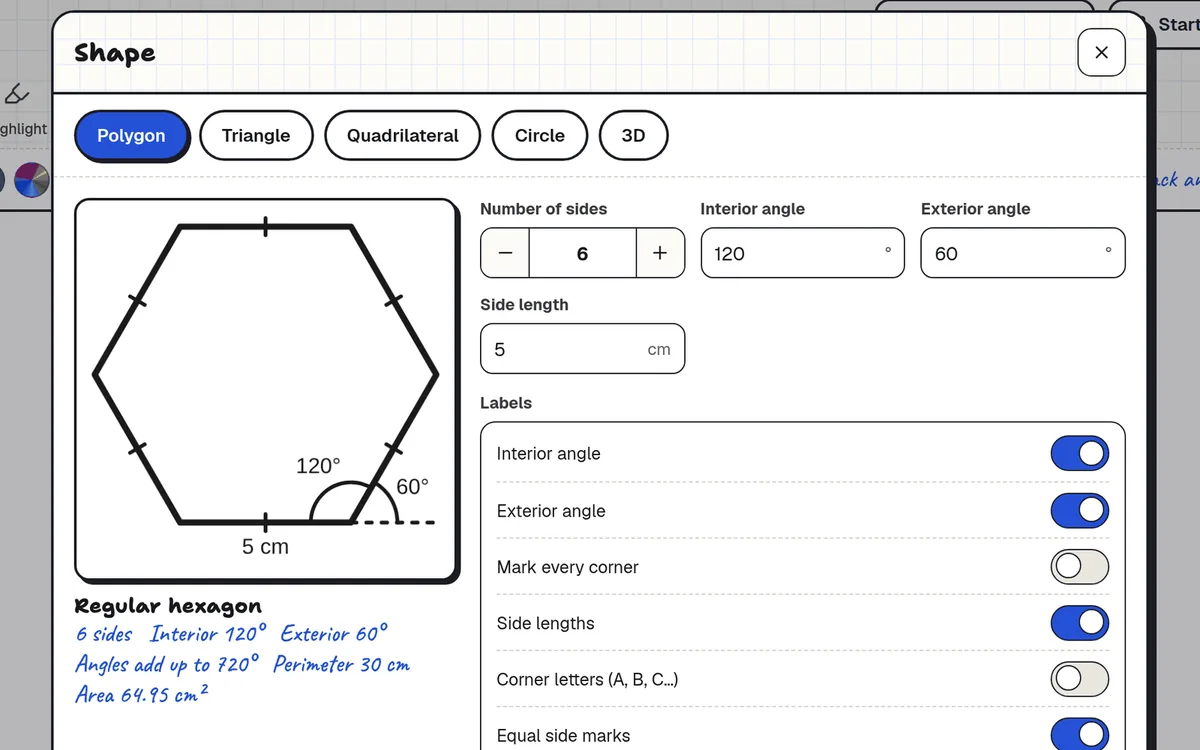
You choose what gets labelled: angles, side lengths, corner letters and equal-side marks. Under the preview are the facts for that shape, such as perimeter, area and angle sum, or volume and surface area for a solid.
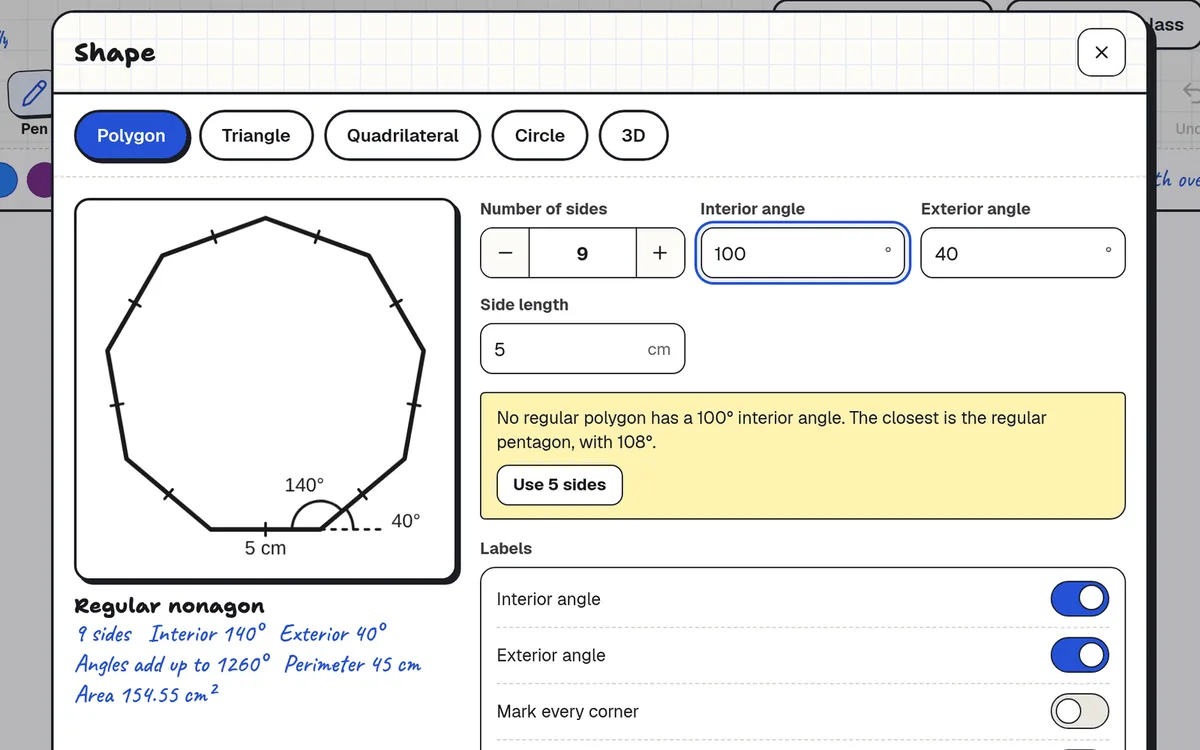
Ask for something that can't exist, such as a regular polygon with a 100° interior angle or a triangle whose sides can't meet, and it tells you why.
The shape lands on the board as ordinary ink with text labels, so you can move it, copy it or rub parts out. To change its measurements afterwards, insert a new one.
Geometry tools: ruler and compass
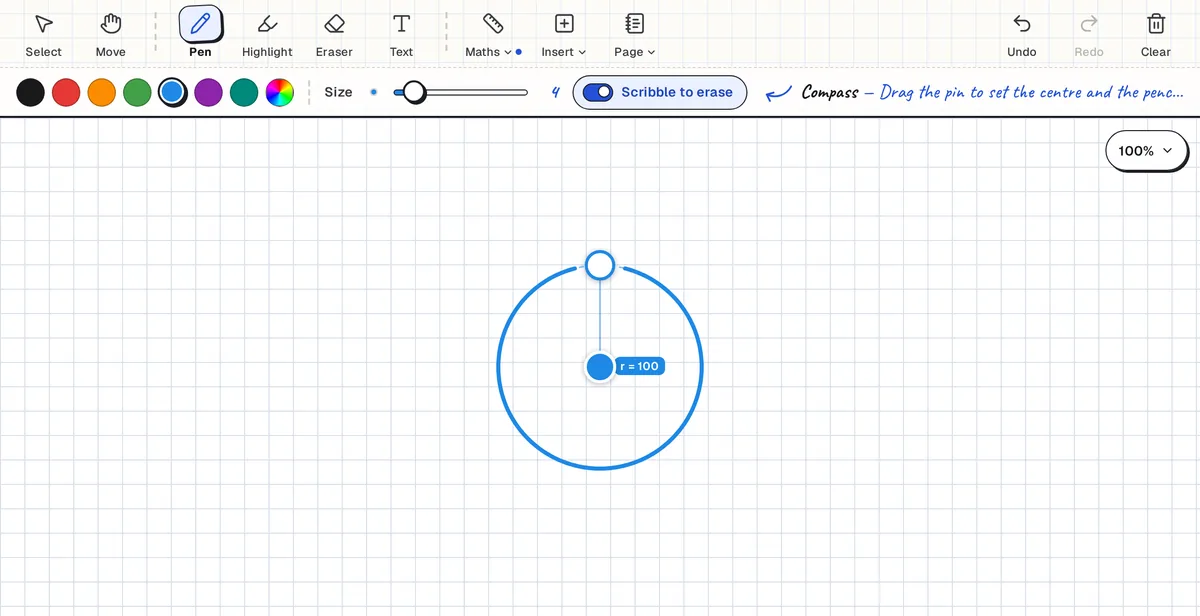
Open the Maths menu and pick Ruler or Compass. Both sit on the board like the real things.
- Ruler: draw perfectly straight lines at any angle and measure lengths.
- Compass: drag the pin to set the centre and the pencil to set the radius, then draw circles and arcs.
Graph paper, set up your way
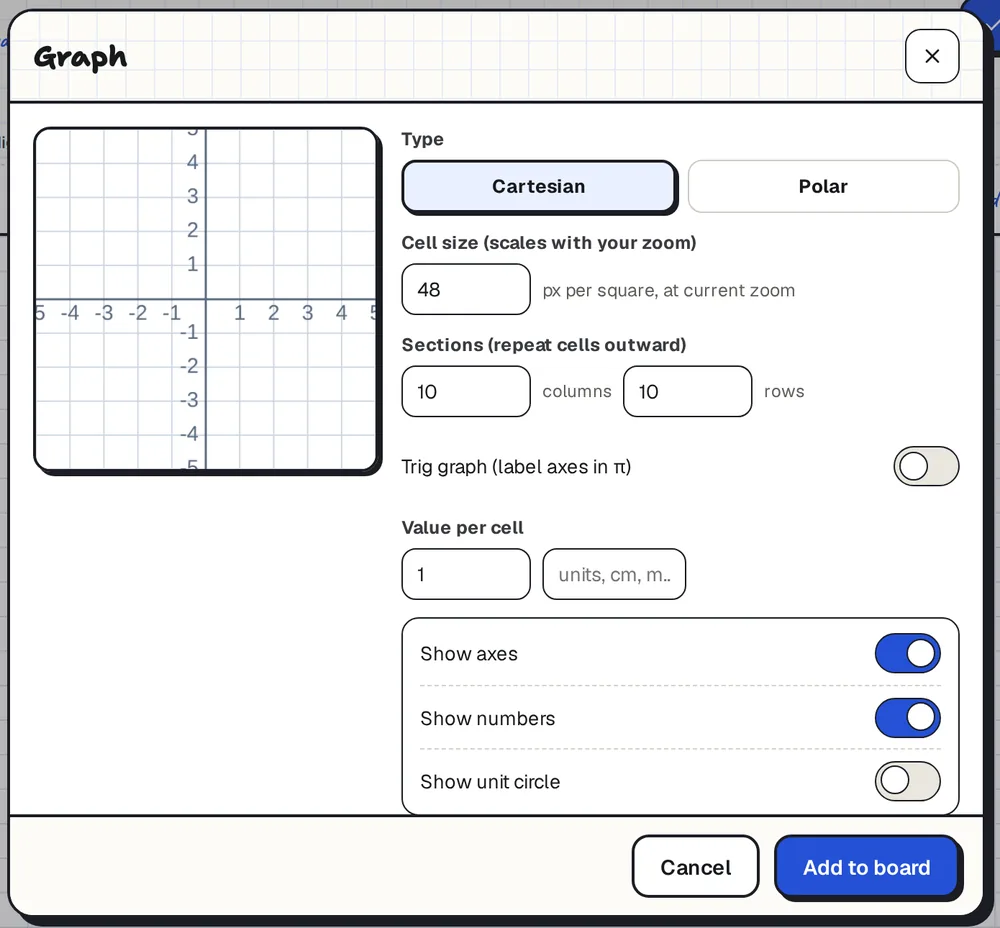
The Graph tool places a set of axes on the board. You choose:
- Cartesian or polar axes.
- The cell size, and how many columns and rows.
- The value of each cell, with a unit such as cm or m.
- Trig labels, so the axis is marked in multiples of π.
- Whether to show the axes, the numbers and a unit circle.
A live preview shows the graph before it goes on the board. Then drag it into place and draw on it.
A scientific calculator with exact answers
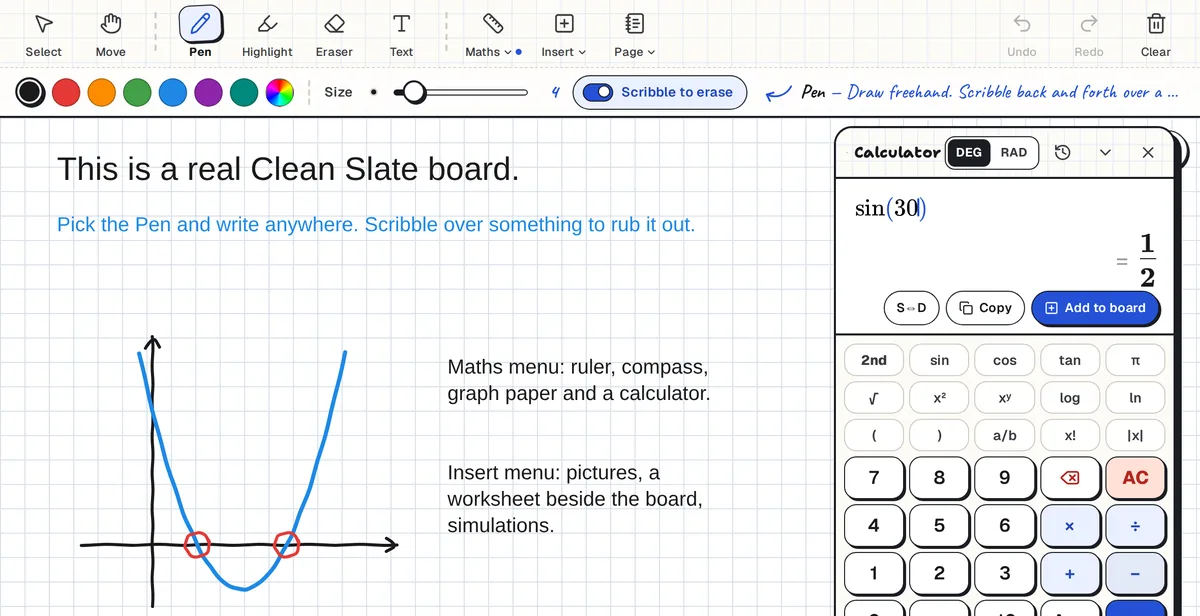
The calculator is laid out like a school scientific calculator. It gives exact answers such as ½, 2√2 or π/4, and one tap switches between the exact form and a decimal. It works in degrees or radians, keeps a history of your last answers, and its Add to board button writes the calculation onto the board.
Squared, dot grid and isometric paper
Set the whole page to squared paper for graphs and tables, dot grid for diagrams, or isometric paper for 3D shapes. The pattern stays in place as you zoom and pan, and the eraser never rubs it out.
Write maths by hand
Maths is quicker to write than to type. Clean Slate is made for a stylus: the pen follows your hand, a scribble over a mistake rubs it out, and on an iPad your palm can rest on the screen. Typed text boxes are there when you want them.
Common questions
Can it draw accurate shapes?
Yes. Insert, then Shape draws polygons, triangles, quadrilaterals, circles and 3D solids to the sides and angles you set, and labels the measurements for you.
Can I change a shape after adding it?
It becomes ordinary ink, so you can move it, copy it and rub parts out. To change its measurements, insert a new shape.
Does it have a ruler and a compass?
Yes. Both are in the Maths menu. The ruler draws straight lines and measures lengths, and the compass draws circles and arcs.
Does it have graph paper?
Yes, in two ways. The Page menu sets the whole board to squared paper, and the Graph tool places Cartesian or polar axes with the scale you choose.
Can it plot a function for me?
No. The Graph tool gives you labelled axes and you draw the curve yourself, as you would on paper.
Is the calculator a graphing calculator?
No. It is a scientific calculator with exact answers, fractions, powers, roots, logs and trig in degrees or radians.
Is it free?
Yes. You can also try the demo board without signing up.