What a teaching whiteboard needs
Most online whiteboards are designed for brainstorming at work: sticky notes, templates and voting. A lesson needs different things, and Clean Slate is built around them.
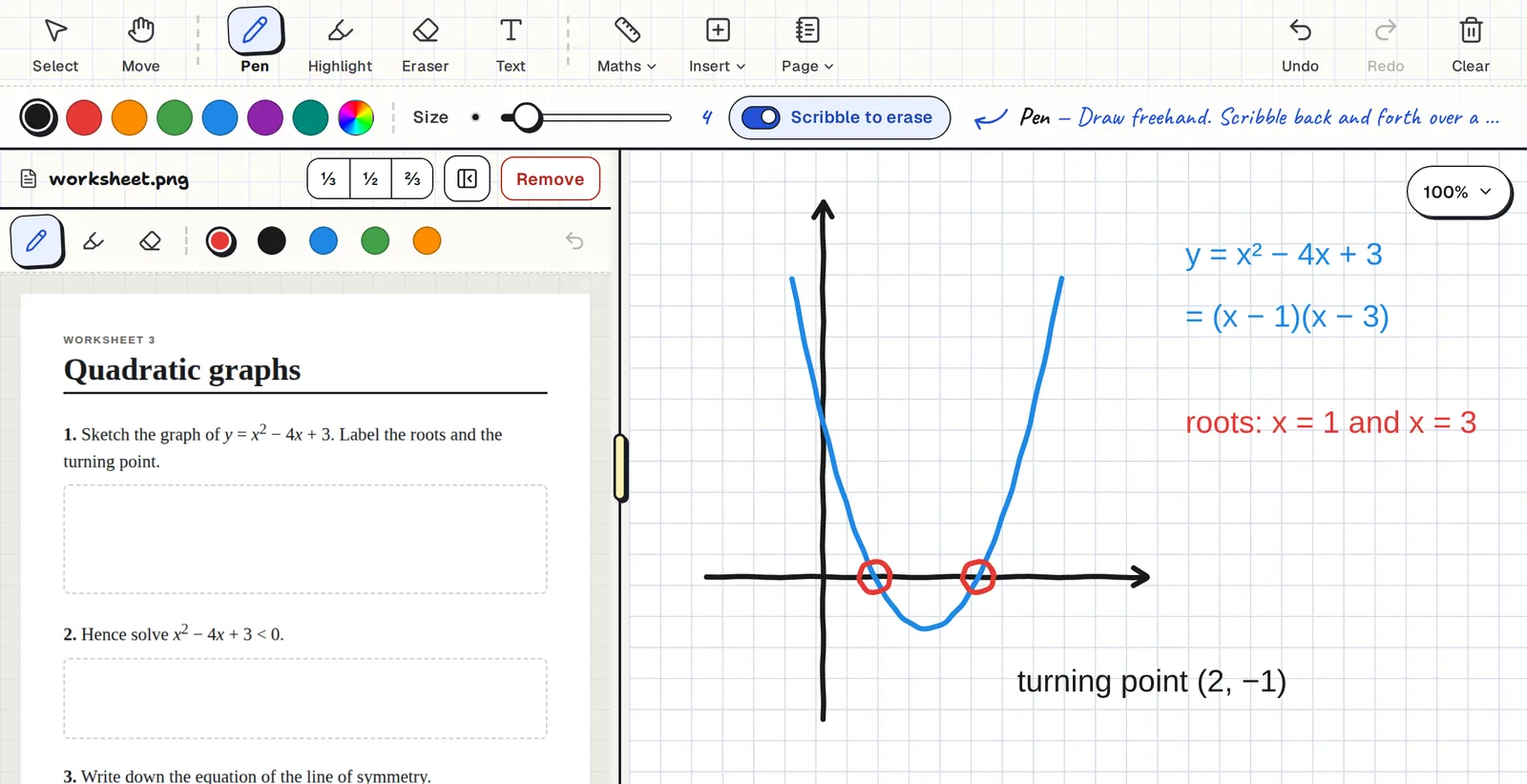
- The worksheet beside the board. Open a PDF or a photo in a side pane and teach from it, without switching windows.
- Tools that say what they do. Every button has a label and a one-line hint, so a new class can use it straight away. When a new tool arrives, a short walkthrough shows you how it works.
- A pen that keeps up. Drawing happens on your device first and saving runs in the background, so writing never waits on your Wi-Fi.
- A board for every student. Start a live class and each student gets their own board to work on.
Teach from your worksheet
Choose Insert, then Reference document, and pick a PDF (up to 30 pages) or an image. It opens in a pane next to the board. Drag the divider to make it a third, a half or two thirds of the screen, and write on the worksheet itself with a pen, highlighter and eraser.
You teach from the question on the left and work it out on the right. Nothing to print, nothing to screenshot.
See every student's working
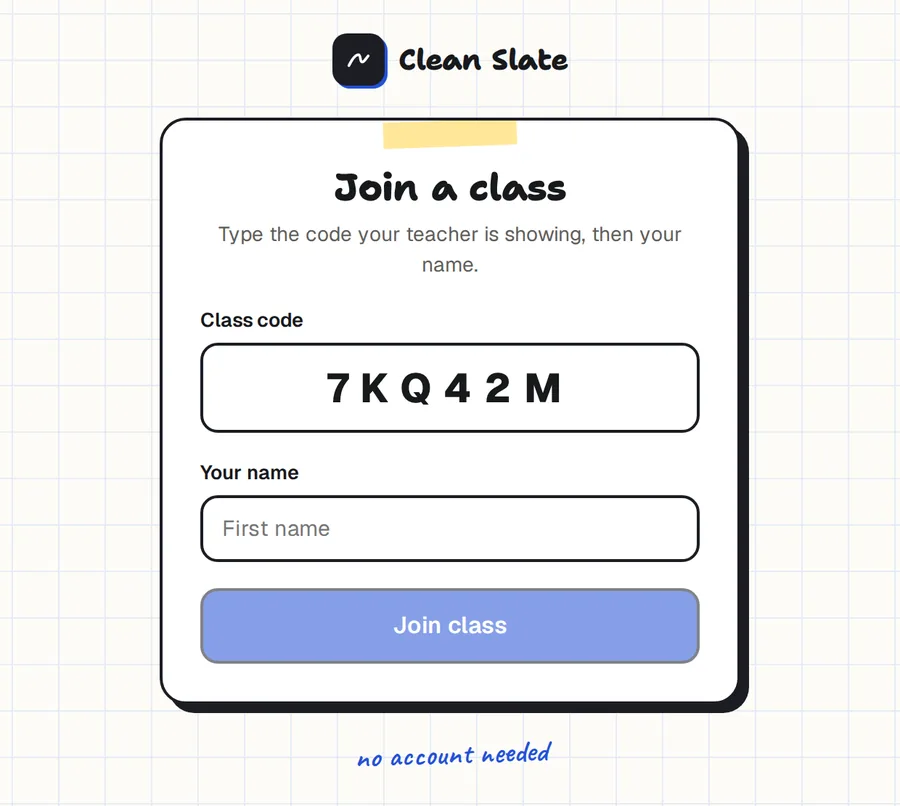
Press Start live class and Clean Slate gives you a six-character code. Students type it on any device, add their first name, and they're in. They don't need an account or an email address.
Each student sees your board and has a board of their own. You see the class list, open any student's board while they work, and pin a comment exactly where they went wrong.
One board for every subject
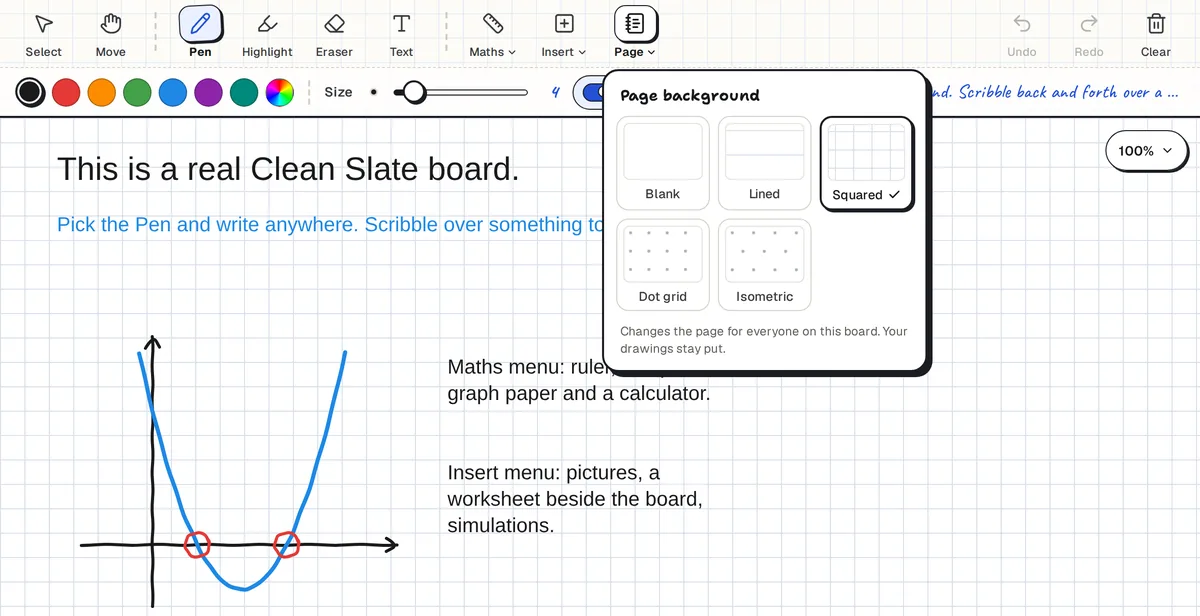
Pick the paper that suits the lesson: blank, lined, squared, dot grid or isometric.
- Maths: exact shapes with the angles and lengths marked, a ruler, a compass, Cartesian and polar graph paper, and a scientific calculator with exact answers.
- Science: label a diagram, or embed a PhET simulation next to your notes.
- English and humanities: paste in a passage or a source, highlight it and annotate the margins.
- Languages: lined paper for handwriting, and typed text boxes for vocabulary.
Free, on the devices your school already has
Clean Slate runs in the browser on iPads, Android tablets, Chromebooks, Windows PCs and Macs. There is nothing to install and no paid plan. It's made for a stylus: on an iPad, resting your palm on the screen doesn't leave marks or press buttons.
Common questions
Is Clean Slate free for teachers?
Yes. There is no paid plan, no board limit and no ads. You sign in with a Google account to save and share boards.
Can I try it without signing up?
Yes. The demo board opens straight away with all the drawing tools. Nothing you draw there is saved.
Do my students need accounts?
No. Students join a live class with a six-character code and their first name.
Can I use it with Zoom, Google Meet or Teams?
Yes. Clean Slate has no video or audio of its own, so run it beside your call. Share your screen, or start a live class so students follow on their own devices.
Which devices does it work on?
Any device with a modern browser: iPads (iPadOS 15 and newer), Android tablets, Chromebooks, Windows, Mac and Linux.